golf-practice-support
Golf Practice — How to Practice
Golf Practice follows a simple weekly loop: plan the week’s drills, log each drill as you finish it with a 0–10 score and a short reflection, and look at the trends to decide what to work on next. This guide goes through each tab.
Contents
Getting started
On first launch, create a player or import an existing Practice Log workbook. A new player starts with the built-in drill list, the category, location, status and practice-type lists, and a default week plan, all taken from the Golf Handbook. You can change all of them later in Settings.
The app has five tabs: Home, Log, Plan, Trends and Settings. At the top of every tab are the player’s avatar (the player menu) and a book icon that opens the handbook.
Players
You can keep several players on one device, for example a parent and a junior golfer, or a coach’s students. Tap the avatar at the top of any tab to:
- switch to another player,
- add a player, or
- edit the current player: name, avatar (an emoji, or a photo cropped to a circle), or delete them.
Each player has their own log, plans, drill list, lists, reminders and handbook PDF.
Home
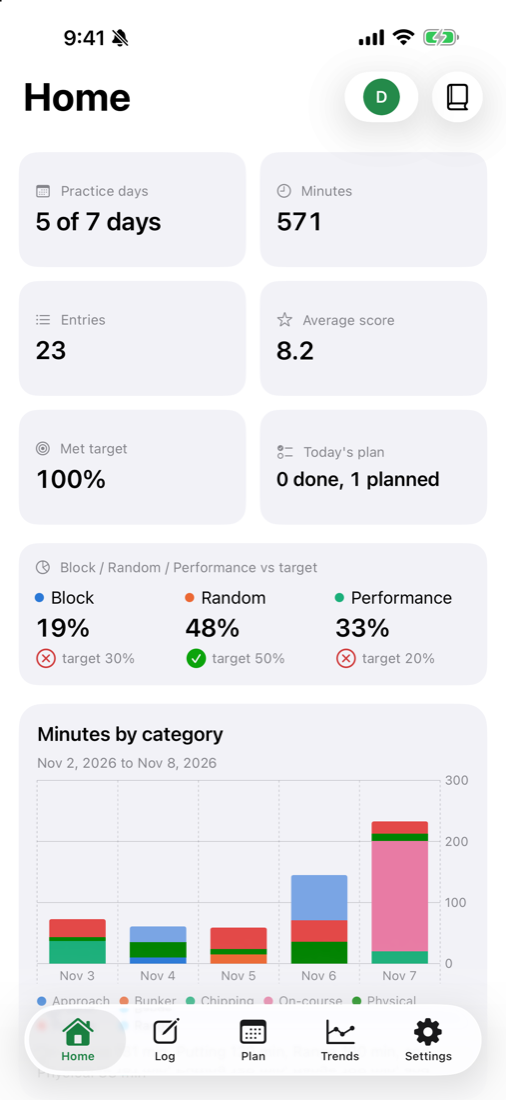
Home shows the last 7 days at a glance: practice days, minutes, entries, average score, how often you met a drill’s target, and today’s plan. The Block / Random / Performance tile compares your practice-type mix with the handbook’s 30 / 50 / 20 target. A check mark or a cross next to each share shows whether it’s on target. Charts follow below, in two columns on iPad and in landscape.
Log a drill
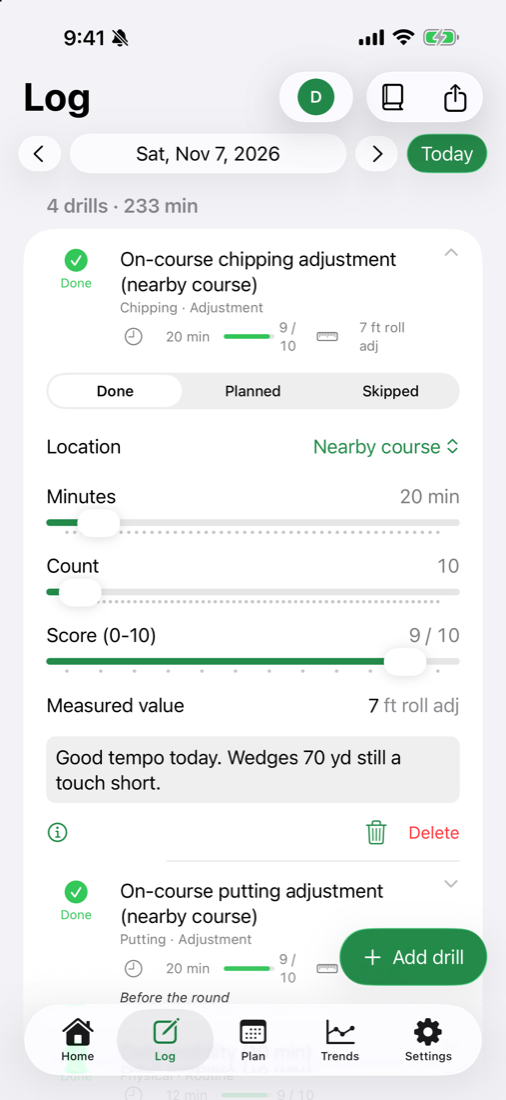
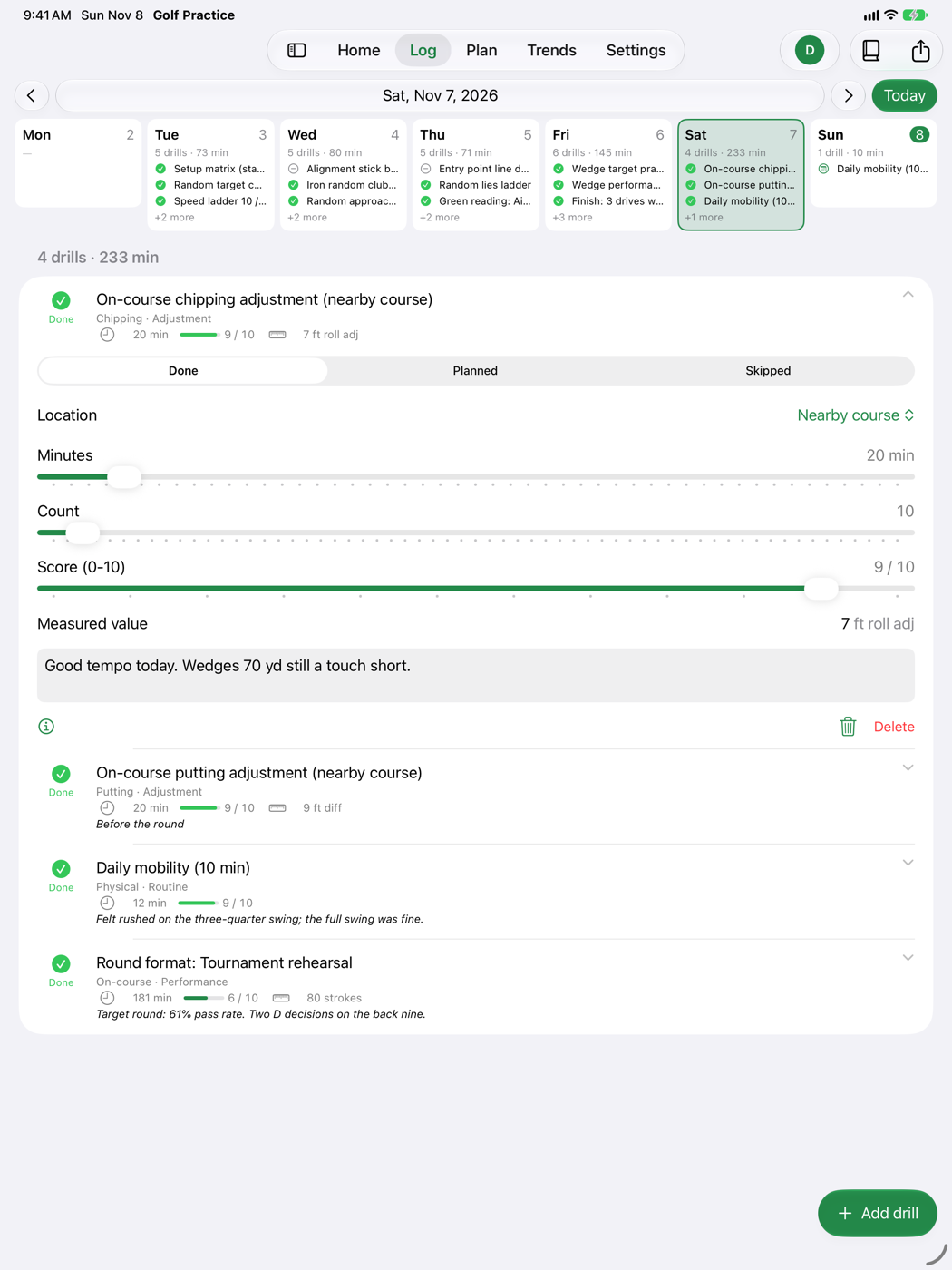
The Log shows one day at a time. Use the arrows or tap the date to move between days. Today jumps back to today. On iPad the whole week is shown as a strip above the day; tap a day to open it.
To log a drill:
- Tap a drill to open it. If the day is empty, tap Add drill and pick a category and drill, or tap Load this weekday from the default plan.
- Set the status to Done. A drill from the plan starts as Planned.
- Check the Location.
- Drag the sliders for Minutes, Count and Score (0–10). For a counted drill the score is the number made out of 10 (7 of 10 = 7). The score slider’s leftmost stop means “not recorded”.
- If the drill has a unit (feet, yards, strokes…), enter the Measured value.
- Write a short reflection: how it felt, what went well, what went badly.
Changes save as you make them; there’s no Save button. Tap the drill again to close it. The ⓘ button opens the drill’s details from the handbook: what to do, how to score it, and its target.
Shortcuts:
- Swipe a drill right to mark it Done or Skipped; swipe left to delete it.
- Mark all done (the check mark at the top) marks every planned drill of the day as done.
- The share button makes a picture of the whole week’s log.
You can edit any past entry the same way.
Plan the week
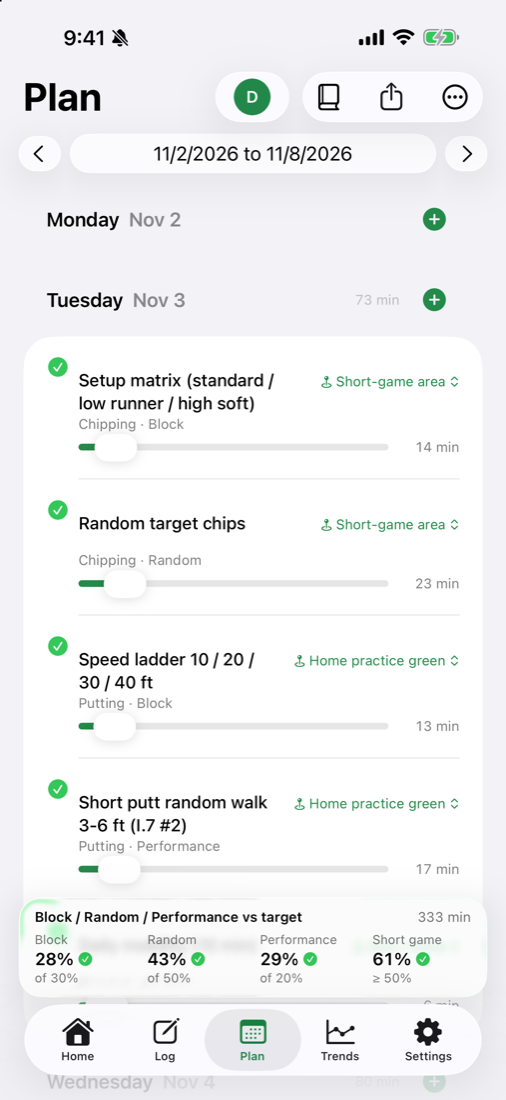
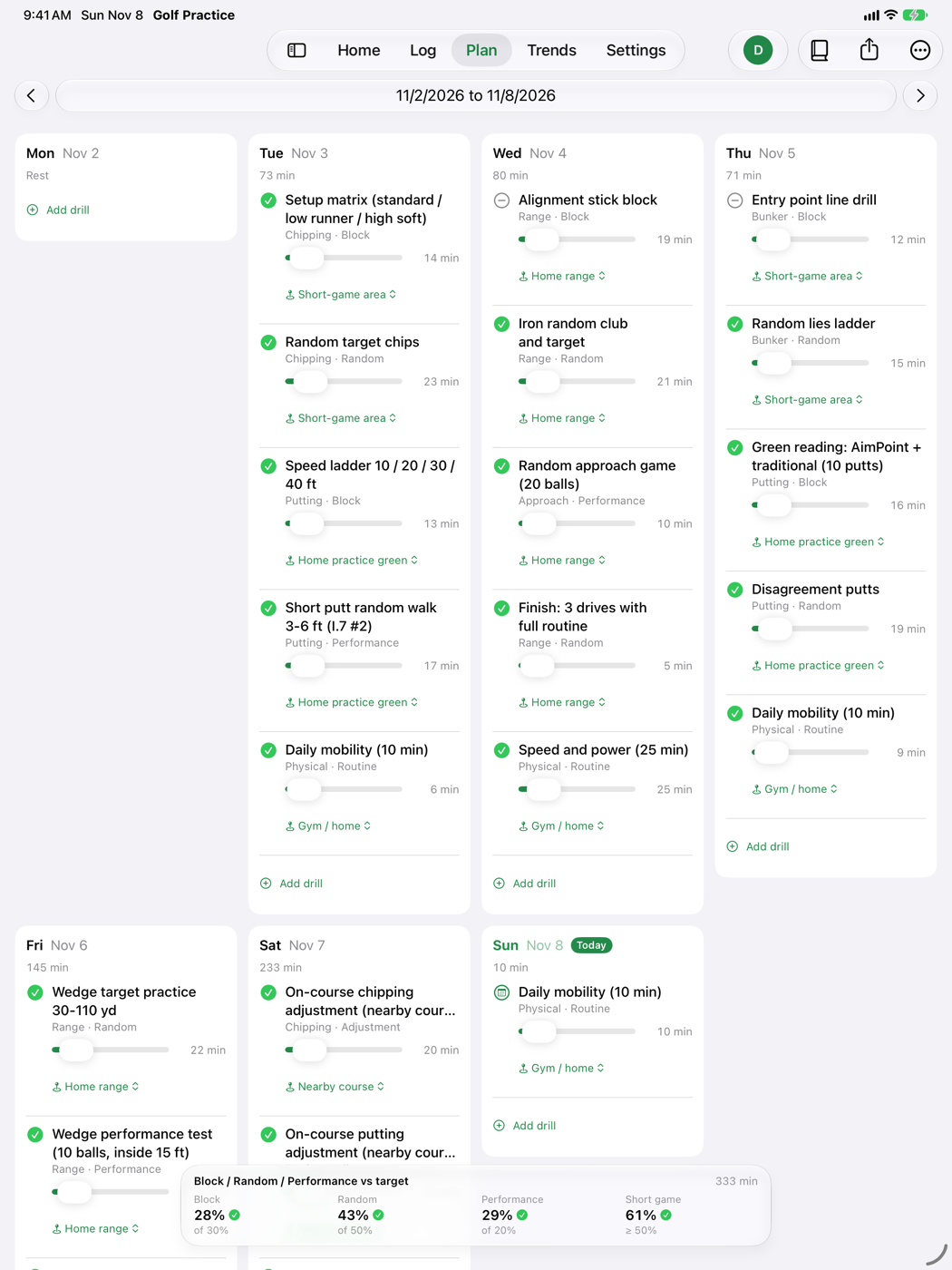
A week plan is simply that week’s Planned drills; marking one Done in the Log turns it into a log entry. Plan opens on this week; use the arrows or tap the dates to move to another week. The week starts on Monday unless you change it in Settings.
- Tap + next to a day to add a drill.
- Pick each drill’s location and drag its minutes.
- The bar at the bottom shows the planned minutes by practice type against the targets (Block 30 %, Random 50 %, Performance 20 %, short game at least 50 %).
- The ⋯ menu has Reset to default plan (fills the week from your default plan) and Set as default plan (makes this week your new default).
- The share button sends the week’s plan as a picture, for example to a coach.
Trends
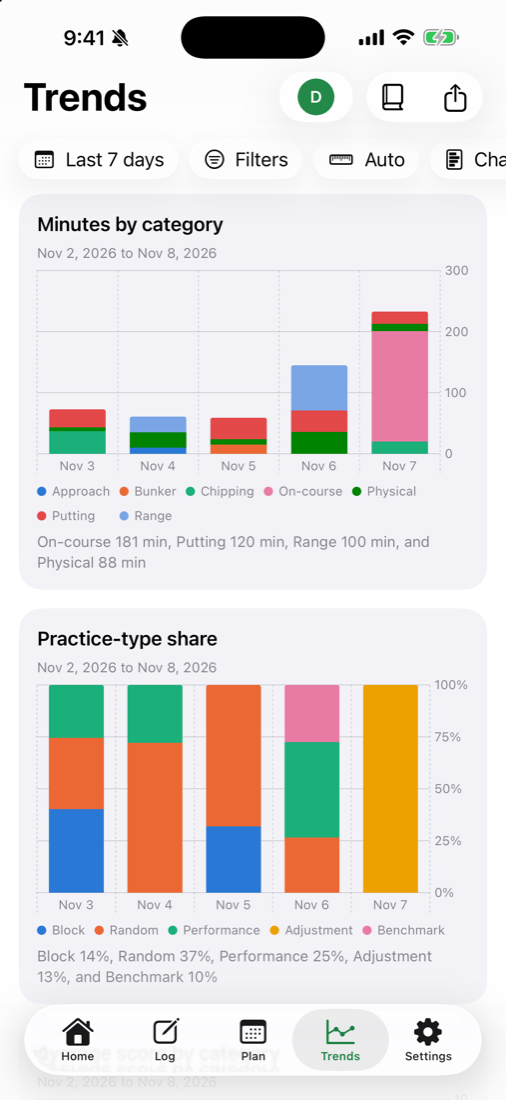
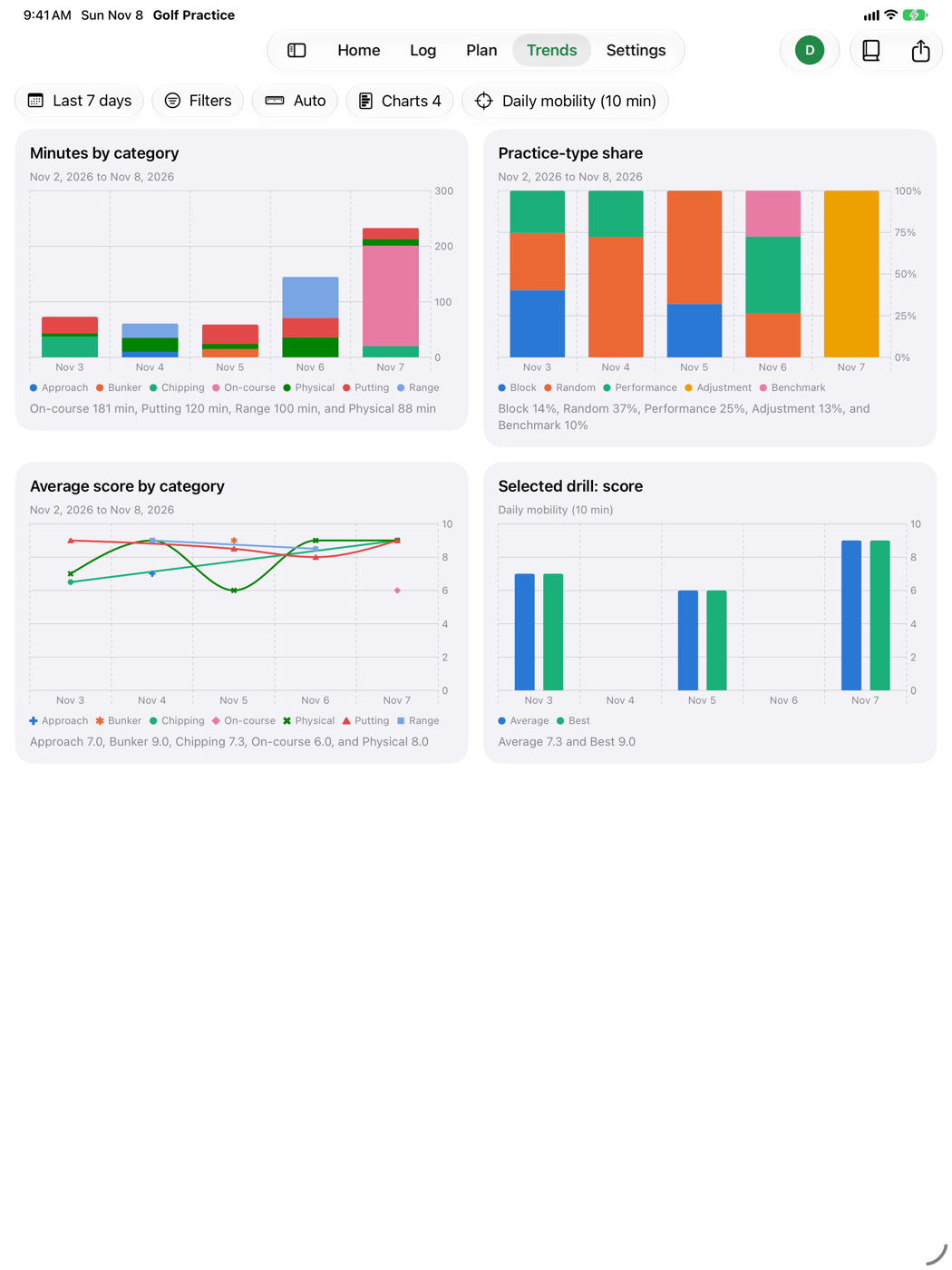
Trends has all the charts from the workbook’s Dashboard and more: entries and minutes by category, practice-type share, scores and measured values by drill, met-target rate, a practice heatmap, and a drill summary. Charts count Done drills only. Each chart also has a written summary, which VoiceOver reads.
The buttons along the top set:
- the date range, from Today to Last 2 years, or a custom range,
- Filters by category, drill, practice type, location, status, score, minutes and met target,
- the granularity (day, week or month; Auto picks one for the range),
- which charts to show.
The share button sends the charts as an image.
The handbook
The book icon at the top of every tab opens the Golf Handbook. You can use the built-in handbook or choose your own PDF in Settings → Golf handbook PDF. The PDF reopens at the page you left. Each drill’s details (the ⓘ button in the Log) link to its section of the handbook.
Settings
Drills and lists
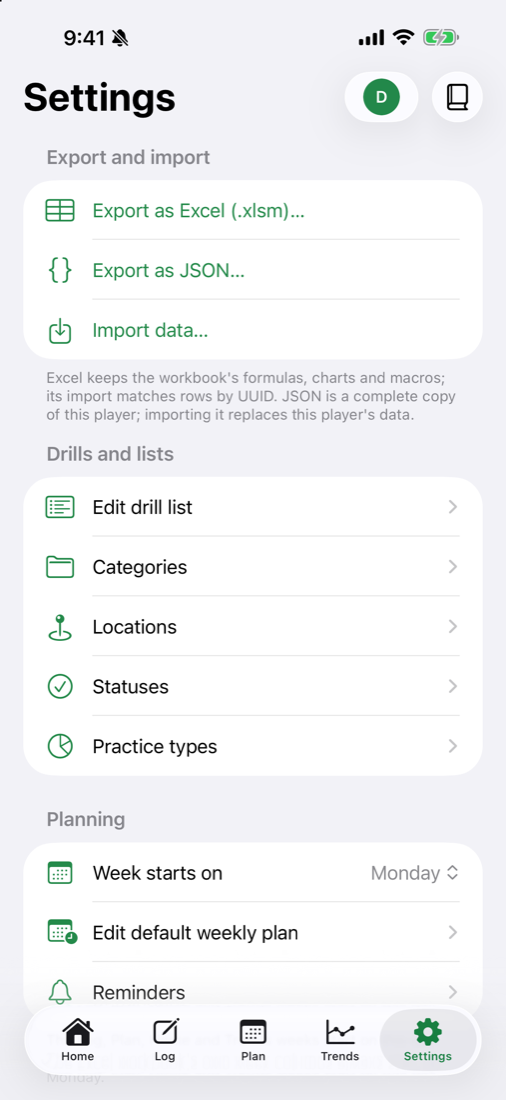
- Edit drill list: add, edit, reorder (Edit, then drag), archive or delete drills. A drill that’s still used in your log or plans can’t be deleted; archive it instead. Restore default drills brings back the built-in list.
- Categories, Locations, Statuses and Practice types: the choices offered in the Log and Plan. When you rename a row that’s in use, you can choose to update the entries that use it too, or rename it only.
Planning and reminders
- Week starts on: the first day of the week in Log and Plan.
- Edit default weekly plan: the plan used by Reset to default plan and by an empty day’s Load this weekday from the default plan.
- Reminders: a reminder when you open the app, and a weekly reminder to share this week’s log and next week’s plan (5 pm by default). The weekly reminder can also be added to Apple Calendar as a repeating event; the app asks for permission to add events, and can’t read your calendar.
Export, import and backup
- Export as Excel (.xlsm) writes the current player into the Practice Log workbook, keeping its formulas, charts and macros. You can edit the file in Excel and import it again: rows are matched by their ID, so nothing is duplicated.
- Export as JSON writes a complete copy of the current player.
- Import data reads either file. For a workbook, choose which sheets to import (Log, Drills, Lists, or all) and whether to add and update or replace the player’s data. A JSON file must be this same player’s export, and it replaces their data.
- Under All players, Back up data saves every player in one JSON file, and Restore data puts a backup back. Clear all players’ data deletes everything.
Files go only where you send them with the share sheet.
iCloud sync
When you’re signed in to iCloud, your practice data syncs between your iPhone and iPad through your own private iCloud database. The developer can’t see it. Without iCloud, the data stays on the device; use Back up data to keep a copy. See the privacy policy for details.